Academic Administrator Use of Faculty Success
Chairs, deans and directors of research centers and institutes recognized by Workday Elevate have unit-level access in Faculty Success. This gives you view-only access to faculty activity data for all faculty who have active appointments in your unit. With this access, you can view a faculty member's activity data and generate reports across some or all of the faculty in your unit.
Administrators can grant Delegate access to the unit in Faculty Success if there is a staff member who supports the unit in report generation. Additionally, administrators can grant staff access to the Workflow Submissions dashboard, if they need to monitor and/or access the report submissions. Use the Proxy Access form to request these access privileges.
Which faculty members are included in this administrative view?
All faculty members with an active academic appointment in one of the Elevate-defined academic units. Appointments in units that are outside of the Provost's area, such as the Division of Research (VPR), are no longer represented in Faculty Success; faculty members with appointments in non-academic units only will no longer be represented in Faculty Success.
Generating Reports: Accessing Faculty Success Data
Not only can you generate an annual activity report, a multi-year activity report or a diversity, equity and inclusion report for one or more of your faculty with your administrative access, but you are also able to use built-in reports that aggregate activity data across your unit.
- The Summary Activity Report provides summary information of the faculty in your unit in the areas of teaching, research and service. This short video demonstrates how to run this report, as well as how to quickly access information on faculty involvement in Diversity, Equity and Inclusion.
- Administrators have access to a number of configured reports in Faculty Success. This list documents what is available.
- Raw data exports of some or all of your unit's faculty can be generated for one or more of the activity screens. The resulting CSV file(s) permit analysis and aggregation across any number of the activity's data fields. This video demonstrates the basic steps for exporting data. Be sure to review the Generating Reports video to familiarize yourself with the options for selecting faculty to include in your data export.
The system also lets you create your own report template, share it with your faculty and run it with data from your faculty. You define which activities are included, and in the order you prefer. Learn more about how to use this feature and what's possible.
Selecting Faculty for a Report
In addition to the Annual Activity Report, administrative users with Departmental or College-level access in the system can run reports for some or all of the faculty in their unit. In running these reports, it is important to consider which faculty will be included - any faculty with a current appointment in the unit, or whose primary appointment is in the unit, or, if tenured/tenure-track, whose tenure home is in the unit.
By default, all faculty members within your department/school (based on your security role) will be included on the report output. The Whom to Include option allows you to run a report for select faculty members (individuals only), or for the entire department, school/college, or campus (dependent on your role). To select certain individuals, or an entire group, click on the Change Selection link in option 2.
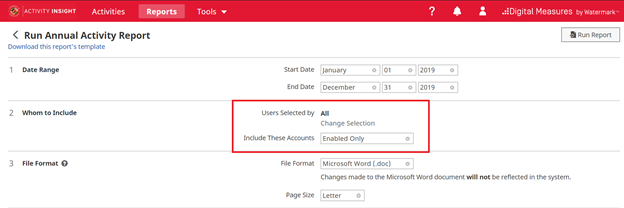
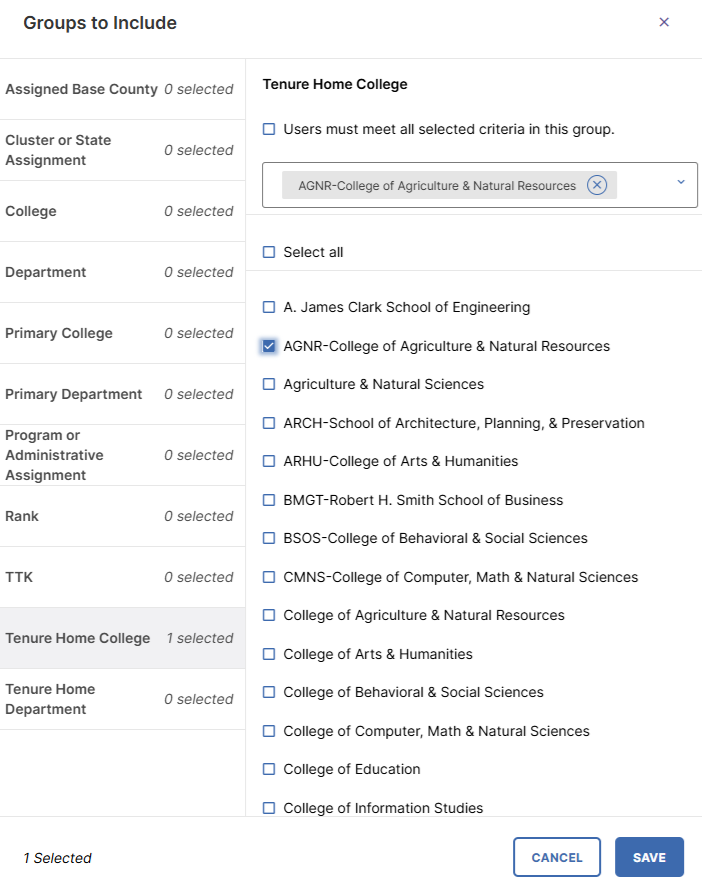
Clicking Change Selection opens a popup window and gives access to five different means of selecting faculty to include in the report:
a. Assigned Base County - This filter is to be used for University of Maryland Extension faculty only based on county assignment.
b. Cluster or State Assignment - This filter is to be used for University of Maryland Extension faculty only based on geographic and/or program assignment.
c. College - all faculty who currently have an appointment in the selected college. The list of colleges in this category covers the set of colleges in which faculty in your scope have appointments.
d. Department- all faculty who currently have an appointment in the selected department or center. The list of departments in this category covers the set of departments in which faculty in your scope have appointments.
e. Primary College - all faculty who have their current primary appointment in Workday Elevate in the selected college.
f. Primary Department - all faculty who have their current primary appointment in Workday Elevate in the selected department/center.
g. Program or Administrative Assignment - This filter is to be used for University of Maryland Extension faculty only based on program or administrative assignment.
h. TTK - all tenure/tenure-track faculty.
i. Tenure Home College - all faculty with their tenure home in the selected college.
j. Tenure Home Department - all faculty with their tenure home in the selected department.
Use the right-facing caret to expand the particular category and select options within it. Selections can be made in more than one category and to include more than one option within a particular category.
To select those faculty who are tenured in your college or department/center, open the Tenure Home College or Tenure Home Department category and select your college or department/center from the set of possible options.
Click on the Save button to finish.

Choose your file format in option 6 - MS Word, PDF, Web page and Excel (for some reports).
Select Run Report at top right on the screen to generate the report.
The output is placed in your browser's download folder.
Special Reporting Situations
When faculty leave the institution, their accounts are disabled but their data remains in place in the system. If you find that you need to include faculty in a report after they have left, you will need to add them to your Whom to Include selection, and change the setting of the Include These Accounts option.
After selecting the group of faculty you need included in your report (e.g., by Department, College or Tenure Home Department), use the Individual selector to add those faculty who have left the institution but need to be included in the report. After saving the Individual selection, choose Enabled and Disabled Accounts for the Include These Accounts dropdown option.
You can now run your report, which will include separated and active faculty.
Monitoring Annual Report Submissions
Administrators have access to the Workflow Submissions dashboard and can use this dashboard to both monitor faculty progress with their report submission, as well as export/download the final submissions documents and attachments. Administrators can grant staff access to the Workflow Submissions dashboard, if they need to monitor and/or access the report submissions. Use the Proxy Access form to request these access privileges.
Accreditation Support
With several year's worth of faculty activity data in Faculty Success, some departments and colleges on campus are finding that Faculty Success can support their accreditation self-study preparations. The platform maintains report templates for a number of accrediting bodies, including AACSB, HLC, ABET, CAEP, and CCNE. These reports mainly draw on data already available in Faculty Success, added as part of faculties' annual activity reporting. Where needed, additional data fields or activity screens can be added to the platform to ensure full coverage for a particular base report.
To learn more...Explore the short video tutorials and guides geared toward administrator use, in the Faculty Success section of the Faculty Affairs website. And reach out to fs-help@umd.edu with any questions.