Adding to the Media Library
The Media Library is an organizational tool for documents -- especially those that might get revised -- and images. Once you've added something to the media library, you can reuse it as many times as you want, without making an extra copy. Also, documents in the media library can be updated without having to change links to a new document title.
Adding Media
To add an item to the media library, choose Media > Add Media from the Content menu, and then choose the appropriate media type. Use the upload button to upload the file. You can also add a title to the item, which can make it easier to find it if you need to update it later. Click the submit button, and then you'll see your new item at the top of the Media Library list. You can copy the download link to use the item in another place on the website.
Updating Media
To update an item in the media library, find the item and click on the edit link. Upload the new version of the item, and then use the handles to move the new version to the top of the list that appears. The version at the top of the list is the one that will appear when a user clicks on the link for the item. 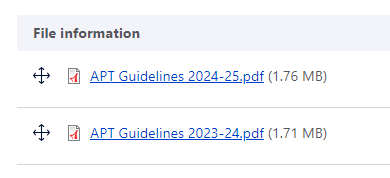
You can also add a note in the box labeled Create New Revision, if it's not clear why the item was revised. Add a title if one does not already exist, and click submit. You will see your item at the top of the Media Library list.